

Character design
Character Concepts
Explore how an original illustrated character could read with natural skin, hair, fabric, and lighting before you continue a concept.
Cartoon to realistic AI can support several creative tasks when you use the uploaded image as a visual guide. Evaluate each new version as an interpretation rather than evidence of a real person or place.
Character design
Explore how an original illustrated character could read with natural skin, hair, fabric, and lighting before you continue a concept.
Profile images
Try a more photographic direction for an avatar or character image while keeping the main pose and visible accessories as references.
Pre-production
Use a stylized frame as a starting point for a grounded scene study, then decide whether that direction fits the next piece.
Pet concepts
Test how a cartoon pet could translate into realistic fur, markings, and portrait lighting while keeping the source species and pose as cues.
Visual development
Use visible clothing colors, glasses, and accessories as a starting brief for a more photographic character variation.
Creative iteration
Compare a stylized source with a grounded interpretation before choosing the visual direction for a larger project.
The model can only respond to details that are visible in the uploaded image. A readable reference gives it a stronger structure for the new realistic interpretation.
Use an image where the face, body, or pet is large enough to inspect and is not hidden behind text, stickers, or heavy blur.
Distinct hair shapes, clothing colors, glasses, coat patterns, and pose direction give the generator concrete cues to follow.
Exaggerated cartoon anatomy and invented details will be interpreted rather than reconstructed as factual real-world features.

Choose a related tool for your next image, avatar, portrait, or illustration. Each option opens a focused workflow with real examples to try.

Turn your photo into a cartoon online with AI. Choose a style, preserve recognizable details, and download a high-quality, watermark-free result. Try it free.
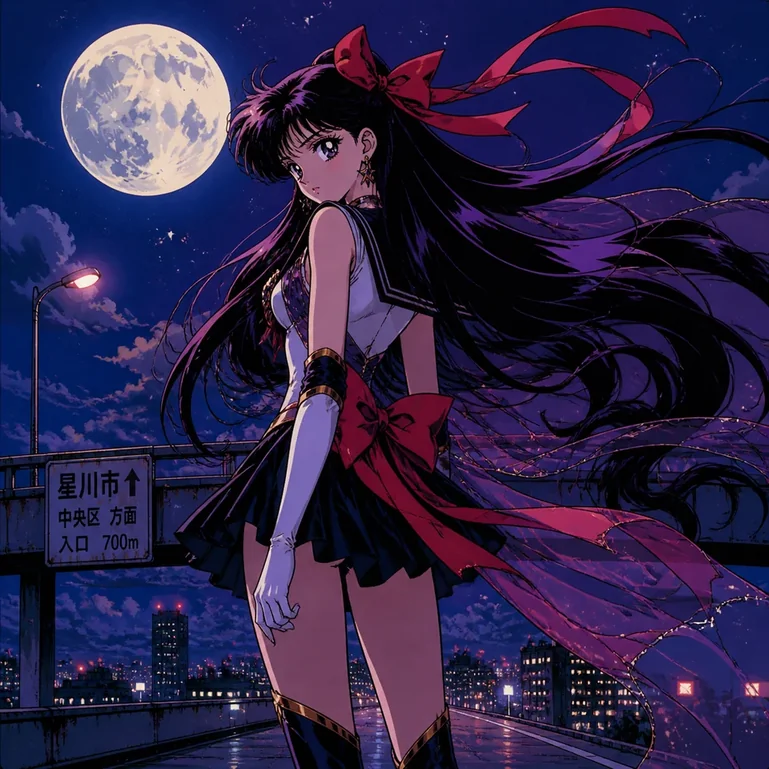
Turn portraits, pets, and travel photos into anime art with AI. Choose a preset style, preserve key features, and download HD results without a watermark.
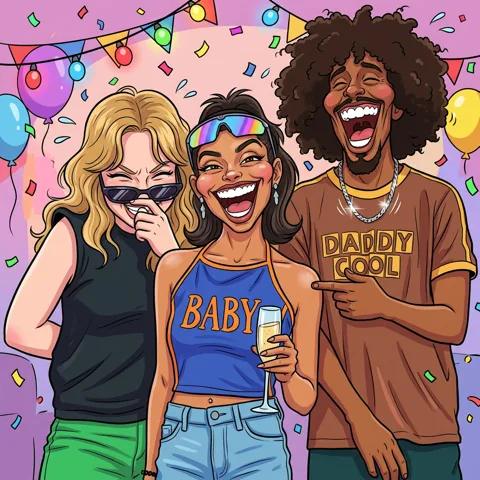
Turn your photos into funny, expressive caricature art online. Free caricature maker for social avatars, personalized gifts, weddings, and couples.

Create cute and stylish anime avatars from your photos with AI. Make custom anime PFPs for Discord, gaming, and social media with 1:1 square crop and HD export.
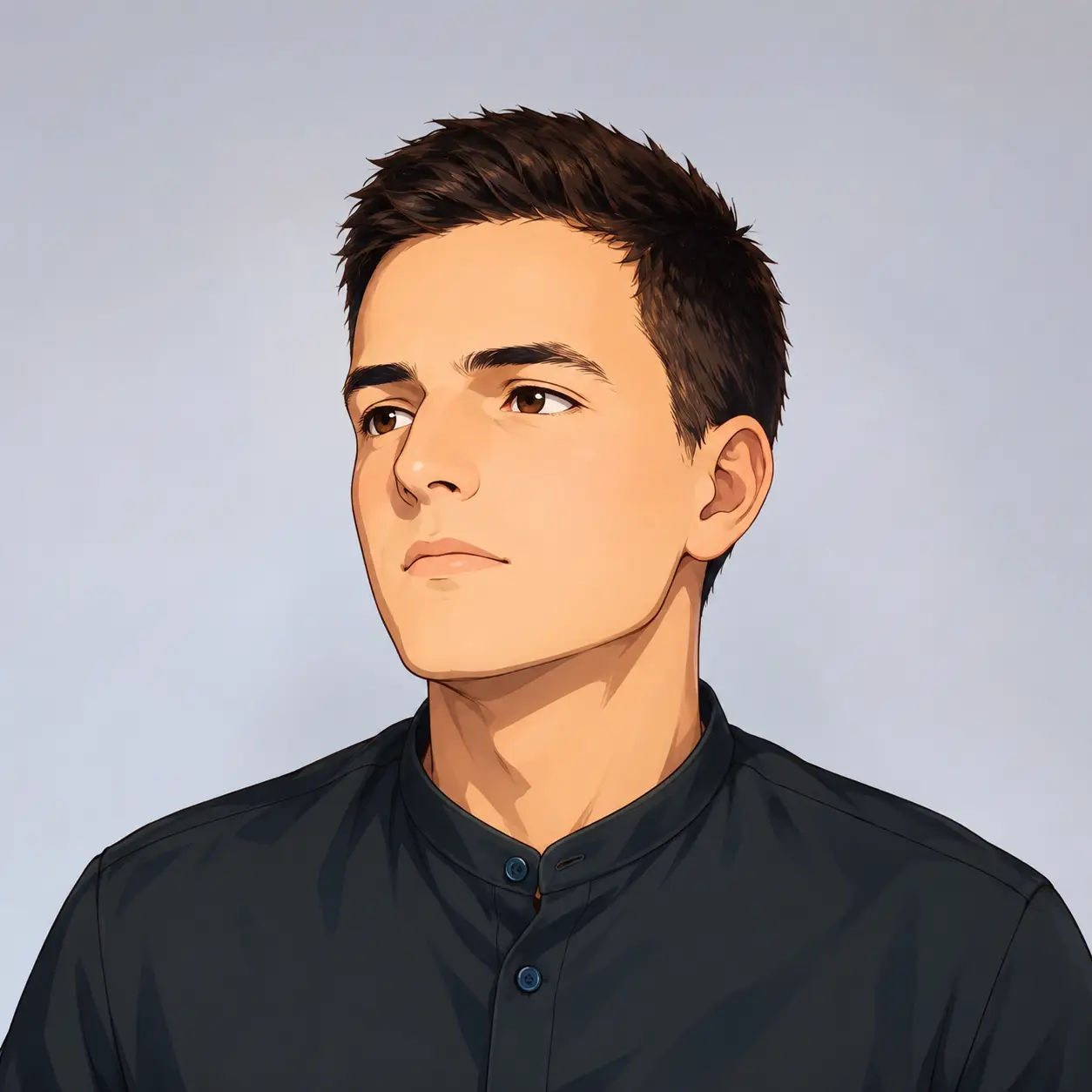
Turn your photo into a cartoon profile picture with AI. Pick 2D, 3D, anime, or sketch styles, keep your look recognizable, and download a high-quality avatar.
This cartoon to realistic AI page is configured around image-to-image generation, so you can move from an illustrated reference to a realistic direction without rebuilding the setup each time.
The upload workflow is selected when the page opens, keeping the reference image at the center of the task.
A dedicated preset supplies the photographic rendering direction while your image provides the subject cues.
Add a short note about details to preserve or change instead of rewriting the complete visual description.
Choose from the available aspect ratios when the result needs to fit a portrait, square profile, or wider scene.
Reuse a gallery input or upload a clearer source when you want to compare another generated interpretation.
Save the generated version you prefer from the normal image generation result workflow.
A cartoon gives the model visual signals, not hidden real-world facts. This makes the result useful for creative direction while setting clear expectations about fidelity.
Pose, framing, dominant colors, visible accessories, and broad hairstyle or coat patterns can help guide a result.
Facial features, skin or fur texture, lighting, background detail, and small materials are synthesized in the new image.
Tiny faces, extreme distortion, heavy blur, and hidden details give the model less structure to follow and can change the output more.
Only upload images you have permission to use. The tool creates a new AI-generated image; it does not restore an original photograph.
Start with the large visual structure. Compare the subject's direction, pose, crop, hairstyle or coat outline, dominant clothing colors, and visible accessories. These cues carry more useful information than tiny line details. If the source is a waist-up portrait and the realistic AI result changes it to a close-up face, fix the framing before judging skin texture or lighting.
Separate a plausible photograph from identity accuracy. An anime to realistic conversion may look coherent while still changing the face, age, expression, or body proportions. That is expected because anime art simplifies or exaggerates anatomy. The same applies to caricatures and cartoon pets. A polished output is evidence that the model produced a consistent image, not evidence that it recovered a real person or animal behind the drawing.
Change one source of guidance at a time. First generate with the default photo-realistic preset and no optional prompt. If a visible cue is missing, add one short instruction such as keeping the round glasses or the white chest marking. If the result still drifts, replace the input with a clearer or less distorted version. This makes it easier to tell whether the reference, prompt, or random generation variation caused the change.
Confirm that the subject count, pose direction, crop, and main silhouette still support the job you have in mind. A well-rendered face cannot compensate for the wrong framing when you need a profile image, character sheet, or scene reference.
Look closely at eyes, hands, glasses, jewelry, clothing seams, fur boundaries, and background objects. These details are often simplified in cartoons, so the realistic AI generator must construct them. Regenerate when an invented detail changes the character or distracts from the image.
A cartoon to realistic image can work as a concept study, profile variation, or pre-production reference even when it is not an exact identity match. For factual reconstruction, legal identification, or a faithful copy of a missing photograph, use source records or a qualified human specialist instead.
Start with a clear reference, then use the result as a new AI-created interpretation.
Choose a JPG, PNG, or WebP with a clear subject and readable details.
The page starts in the photo-realistic image-to-image workflow.
Check the new output against the source. Strong exaggeration, blur, and missing details can change the result.
Keep the version you prefer or generate another interpretation from a clearer reference.
These approaches solve different jobs. The important distinction is whether the image is generated again, edited at the pixel level, or redrawn by a person.
| What changes | Cartoon-to-Realistic AI | Photo or Image Filter | Manual Illustration |
|---|---|---|---|
| Method | Generates a new image using the cartoon as a visual reference. | Adjusts or overlays the pixels already present in the source image. | An artist redraws the subject from a brief and reference material. |
| Reference fidelity | Can follow visible pose, colors, and accessories, but details may change between results. | Usually preserves the exact underlying composition because it edits the same image. | Depends on the brief, artist interpretation, and revision process. |
| Control | Reference image, optional prompt, aspect ratio, resolution, and repeated generations. | Preset strength, color, texture, and other fixed adjustment controls. | Detailed art direction and feedback can be discussed with the artist. |
| Best fit | Fast visual exploration and alternate realistic directions from an illustrated source. | Lightweight edits where the original pixels and identity must remain intact. | Projects that need deliberate authorship, exact revisions, or a specific artist's style. |
| Result status | A new AI-generated interpretation, not a recovered original photograph. | An edited version of the supplied image. | A commissioned or self-created illustration. |
Choose based on the task: use AI redrawing for exploration, filters for pixel-preserving edits, and manual illustration when exact art direction matters most.
Answers about reference quality, anime conversion, prompts, identity changes, file support, and what a realistic AI result represents.
Cartoon to realistic AI uses an uploaded cartoon, anime image, or illustrated character as a visual reference. It generates a new image with photographic lighting, textures, materials, and proportions. The source can guide pose, framing, colors, hairstyle, clothing, accessories, or pet markings, but the model creates the fine details again.
Upload a reference and create a new interpretation with the photo-realistic workflow.