Choose a source
Open Character or Reference Image and select the subject you want to carry through the batch. Use a clear, well-lit reference when the subject has small details.
Use AI Sticker Maker to turn a photo, a saved Character, or a short idea into a coordinated sticker set. Choose 1–9 independent reactions, edit each prompt, then review static images or GIFs before downloading.
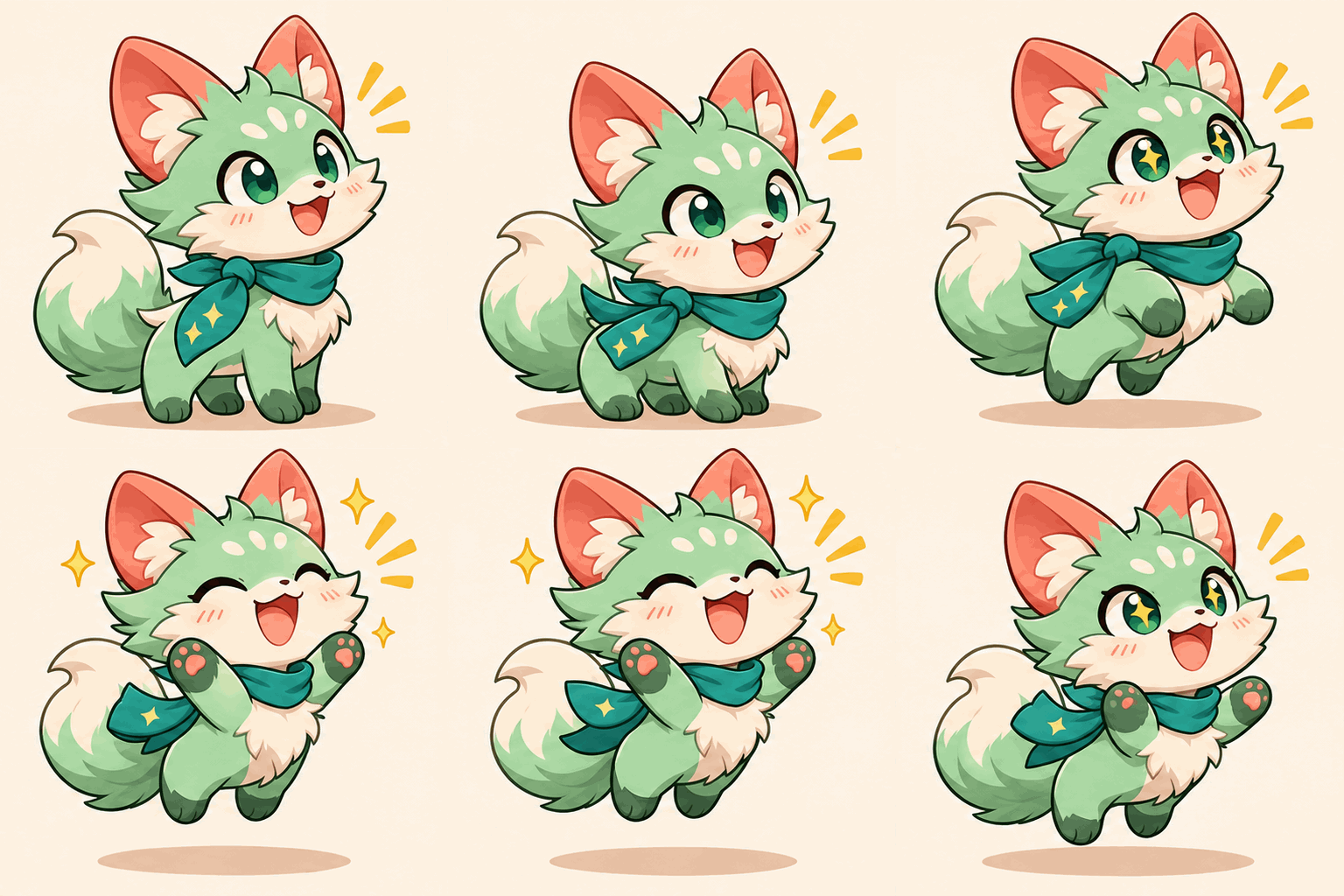
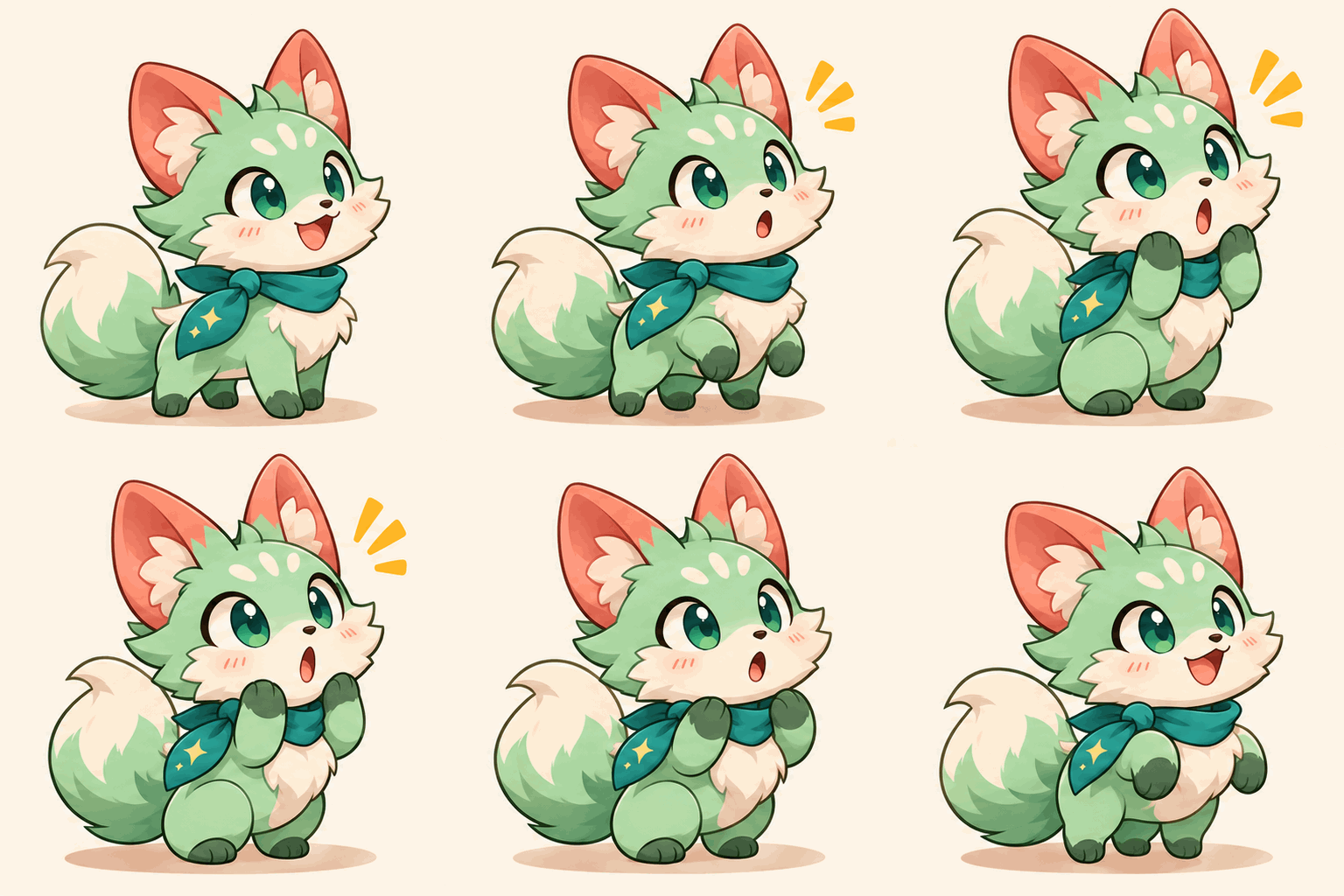
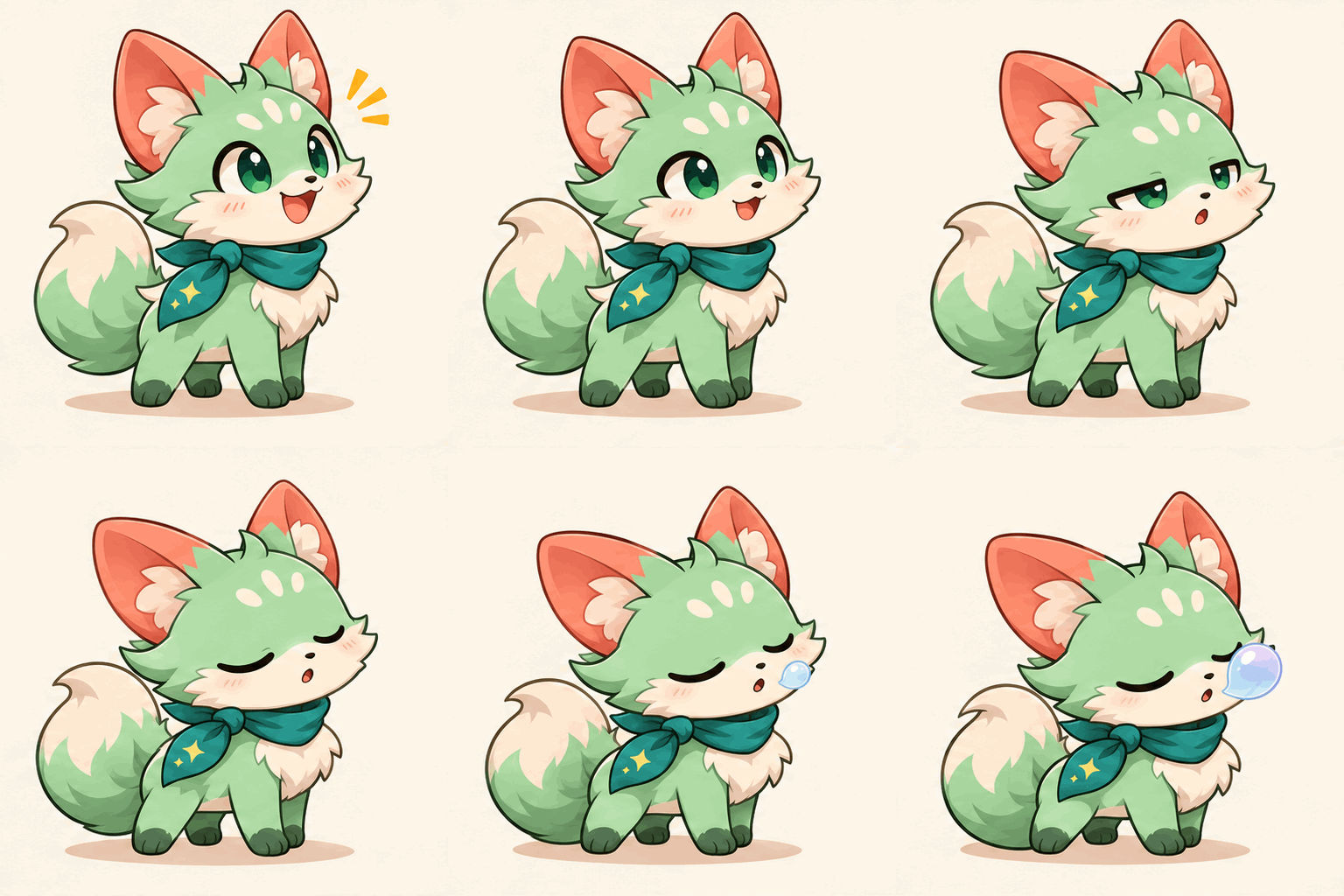
A clean reaction pack starts here
Choose a character or photo, select your sticker count, and describe the reactions you want.
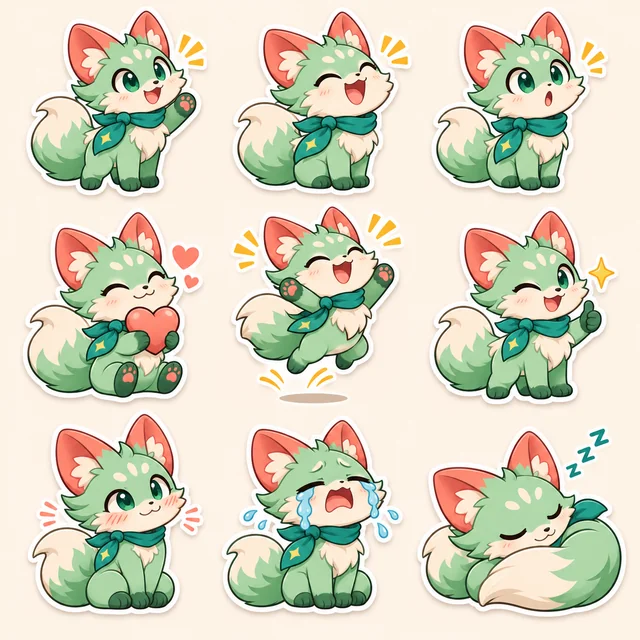
AI Sticker Maker redraws a subject in different expressions rather than simply cutting it out of a photo. Start with an image, a saved Character, or a text idea. Each reaction is generated separately, so you can download individual files instead of cutting a nine-panel sheet apart.
Turn a photo into a sticker by redrawing a person, pet, or mascot in new reactions. Choose one clear JPG, PNG, or WebP up to 30 MB, then describe what the subject should do.
Choose 1–9 outputs. Each result is its own media file, so you can keep, retry, or download one reaction without rebuilding the whole set.
Select a saved Character and keep it as the source for the batch. Change the action or expression in each prompt, then compare the face, colors, and clothing across results.
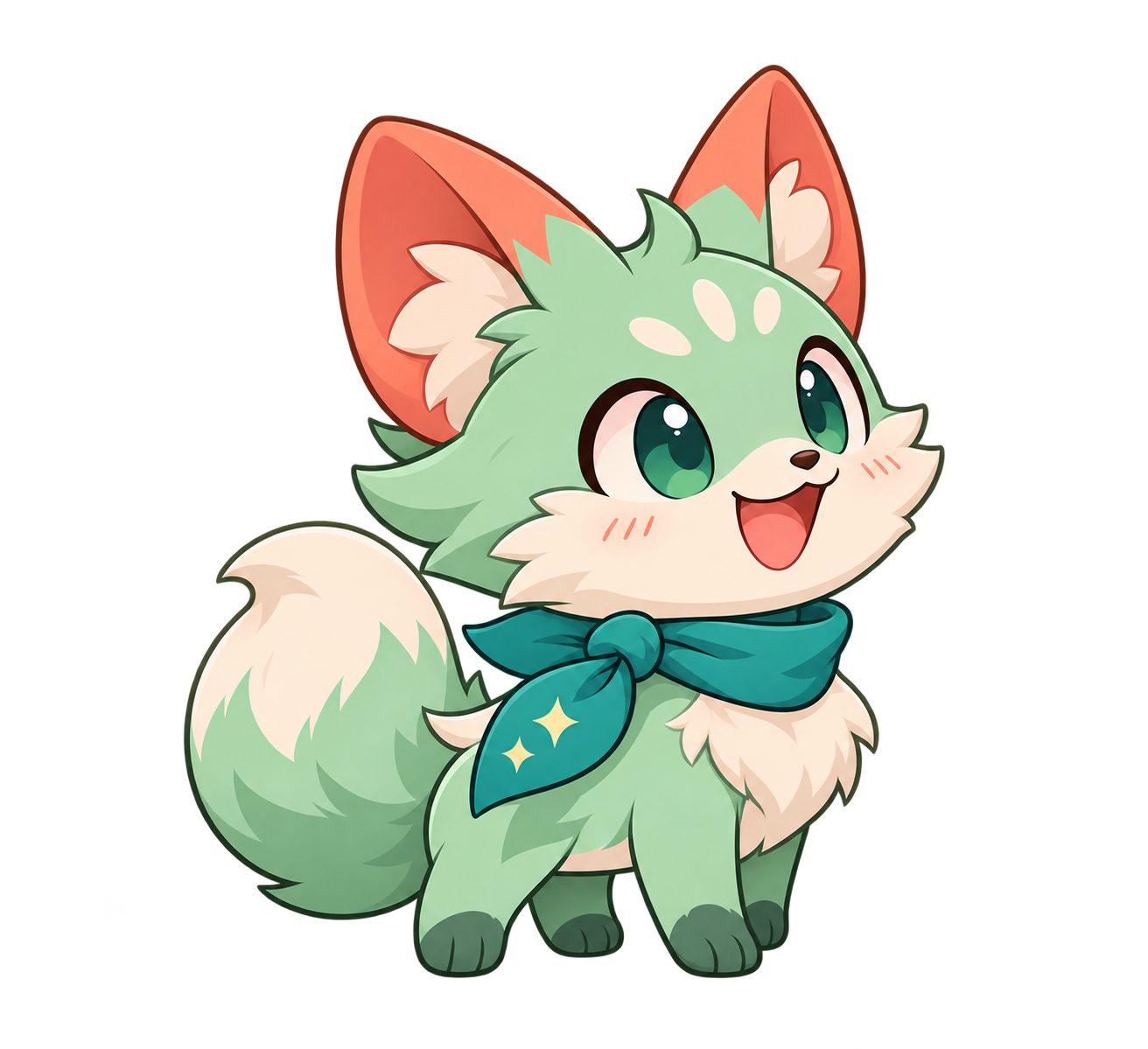
Leave the source unselected to create a subject from words. Describe the same subject in each prompt and add one action, such as a green fox waving hello. Use a reference when matching an existing character matters.
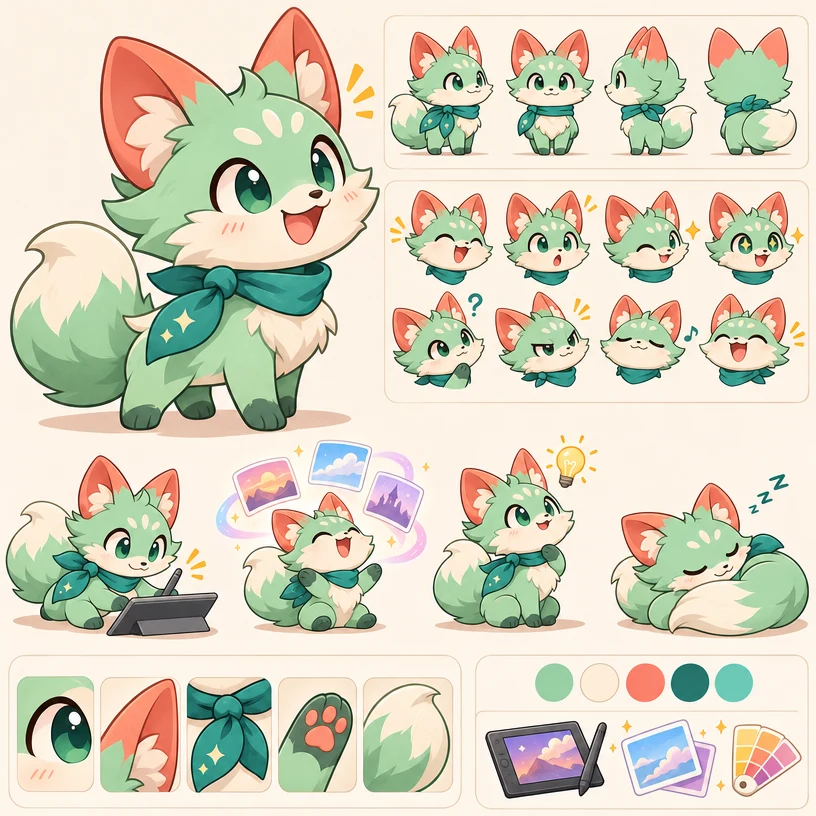
The workbench keeps the source, reaction prompts, quantity, output type, and result review in one place. It is designed for making a first usable set quickly, then correcting individual prompts instead of starting over.
Choose a reference image from Upload, Creations, or Phone, or reuse an existing Character through the shared picker.
Use Random fill for a starting set of distinct reactions, then edit every prompt before generating if the wording needs to change.
Generate 1–9 separate reactions and review them in a grid. Download each file individually; a batch is not an automatically installed or packaged sticker collection.
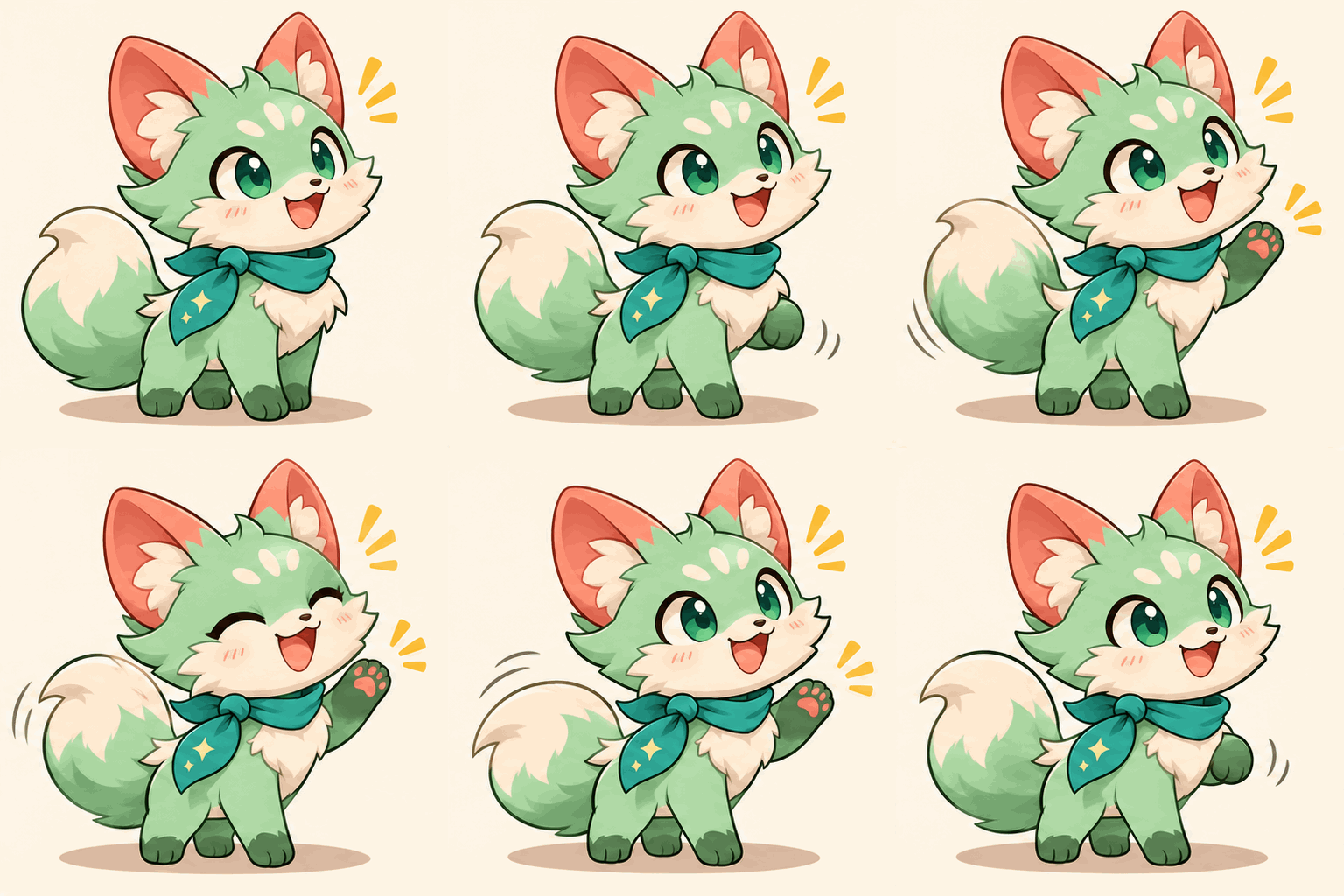
Choose a still image for a single expression or GIF for a moving reaction. Preview the animation before downloading; its destination may require conversion to another format.
Thumbnails keep the grid quick to scan. Downloads use the original media URL rather than the preview thumbnail.
The generation prompt asks for the full silhouette, clear padding, and a die-cut edge. Inspect the image before using it because visual output still needs review.
A good first batch comes from a clear source, short action prompts, and a final check of every result.
Open Character or Reference Image and select the subject you want to carry through the batch. Use a clear, well-lit reference when the subject has small details.
Choose any number from 1 to 9 independent stickers. Use Random fill for ideas, then keep each prompt focused on one action or expression.
Pick Static or GIF, generate, then inspect the silhouette, expression, lettering, and edges. Retry only the result that needs work and download the original you want to keep.
The general maker creates and previews original media. Use this checklist to decide whether a result is ready for your destination, then open a focused guide when you need destination-specific conversion or packaging rules.
A generated result is ready to review, not automatically guaranteed to meet every destination's upload rules. The linked platform pages own those separate format, size, and packaging questions.
In AI Sticker Maker, choose Reference Image and upload one JPG, PNG, or WebP up to 30 MB. Describe each reaction and generate the batch. The model redraws the subject using the source; it does not just add an outline to the original photo.
Start a small batch in AI Sticker Maker with one photo, Character, or idea. Inspect the results and keep the reactions that fit.
Choose a related tool for your next image, avatar, portrait, or illustration. Each option opens a focused workflow with real examples to try.
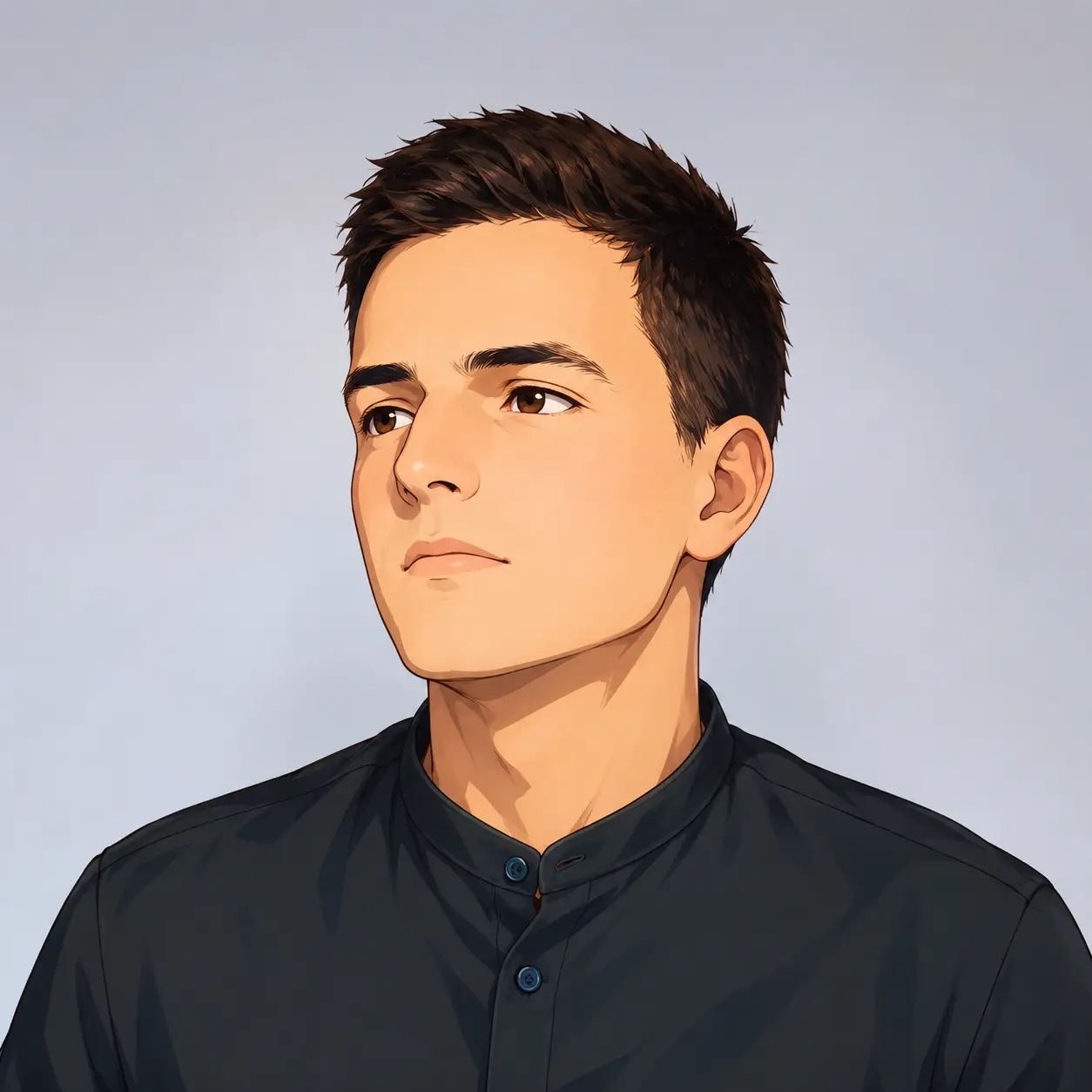
Turn your photo into a cartoon profile picture with AI. Pick 2D, 3D, anime, or sketch styles, keep your look recognizable, and download a high-quality avatar.
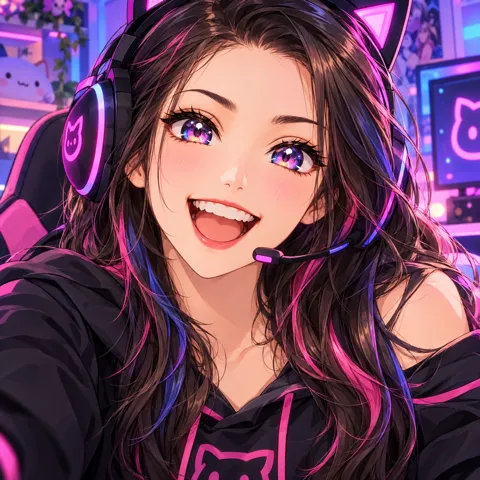
Create cute and stylish anime avatars from your photos with AI. Make custom anime PFPs for Discord, gaming, and social media with 1:1 square crop and HD export.

Turn your photo into a cartoon online with AI. Upload portraits, selfies, or pet photos to apply an expressive cartoon filter in seconds with recognizable details. Free to try.
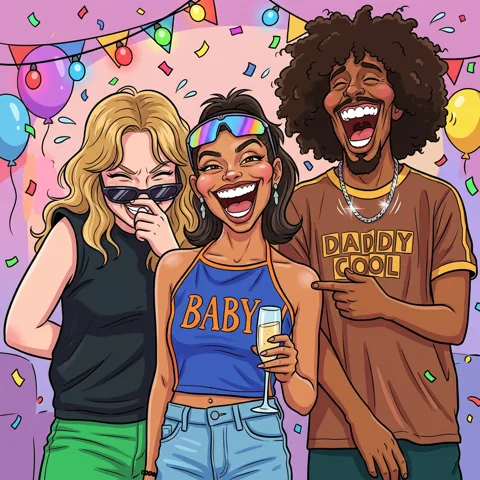
Turn your photos into funny, expressive caricature art online. Free caricature maker for social avatars, personalized gifts, weddings, and couples.
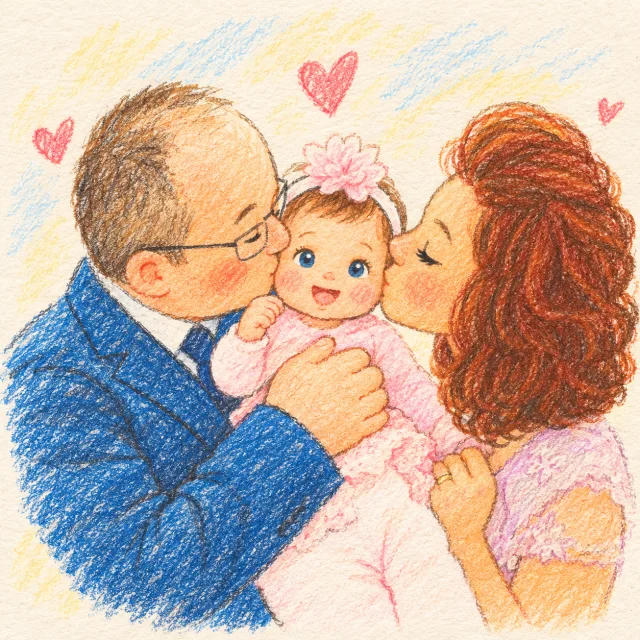
Create a family photo cartoon from one clear picture. Compare styles, keep relatives and pets recognizable, and make downloadable artwork for gifts or memories.
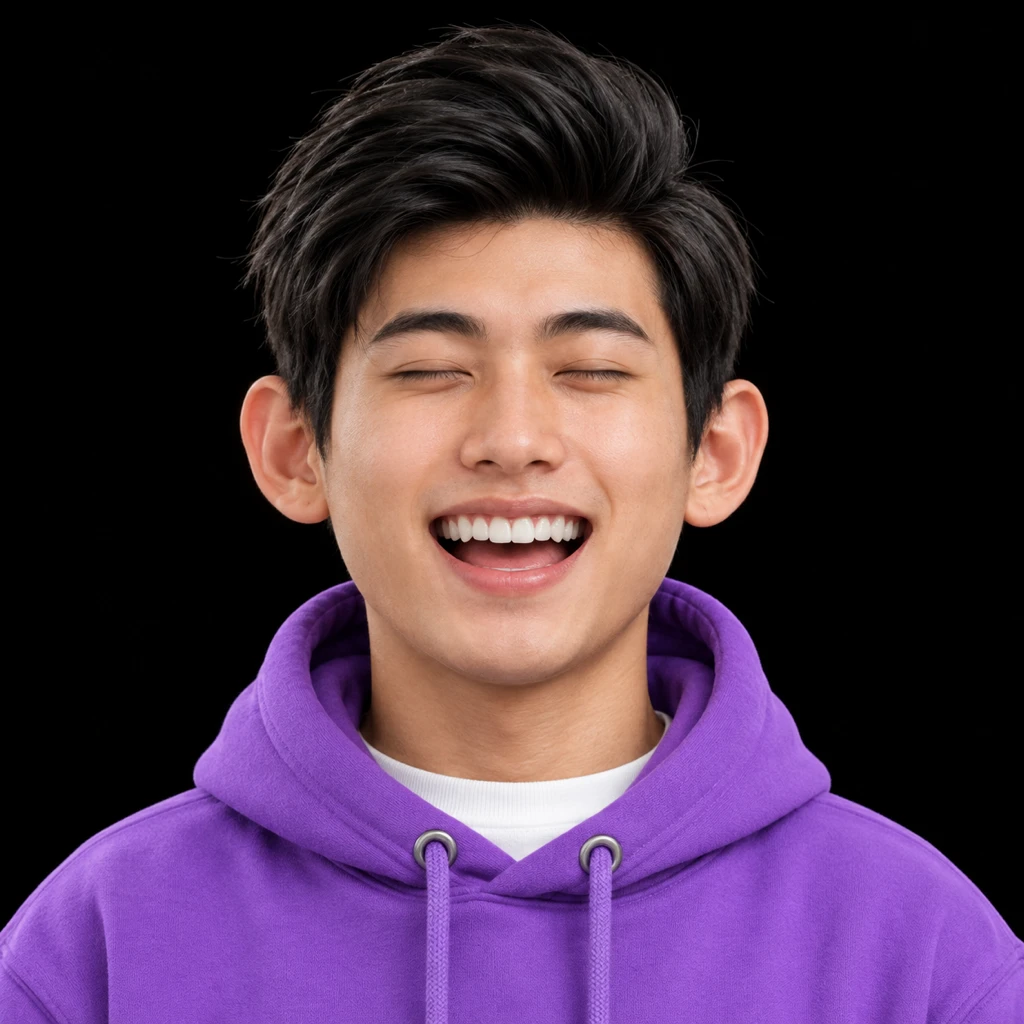
Use cartoon to realistic AI to turn cartoon or anime images into realistic AI art. Upload a reference, guide the redraw, and compare generated results.