

The simplest way to create an anime avatar for Discord is to start with a clear portrait, convert it into anime artwork, keep the face inside a safe circular area, and upload the finished image from Discord's profile settings. You can do the image part in a browser with the cartoon profile picture maker: upload a JPG, PNG, or WebP portrait, choose Anime, generate a square avatar, and download the version that still looks like you at a small size.

This guide covers the whole workflow, including what to put in the frame, how to choose an anime direction, how to test the avatar before publishing, and where the upload controls live in Discord. The goal is not simply a dramatic image at full resolution. It is a profile picture that remains recognizable beside a message, in a member list, and in a server where everyone is using a different visual style.
Create Your Own Anime Avatar or Download an Anime PFP?
Both approaches can work, but they solve different problems. A downloadable anime PFP is quick when you only need a decorative image. A photo-based avatar is more useful when you want friends or community members to recognize you without using a real photograph.
| Option | Useful when | Check before using it |
|---|---|---|
| Create from your own photo | You want a recognizable, personal profile image | Keep identifying details only from a photo you have permission to use |
| Create an original character | You want a distinct identity without using your face | Avoid copying a named character, artist, or another Discord user's avatar |
| Download an existing PFP | You need a temporary or decorative avatar | Confirm the image license and whether other users are likely to reuse it |
This guide focuses on the first option: turning your own portrait into a custom anime avatar. If you want an original character instead, use the AI Cartoon Character Generator and describe the character rather than uploading another person's face.
What Makes a Good Anime Discord Avatar?
Discord avatars are seen small and are commonly shown inside a circular frame. That changes the design brief. A full-body character with a detailed background may look impressive in a large preview but lose the face, expression, and silhouette when reduced. A useful avatar usually has:
- one clear subject;
- a head-and-shoulders or close-up composition;
- a face that sits near the center;
- strong separation between hair, face, clothing, and background;
- one visual idea rather than many competing effects.
You do not need to make the avatar look like an existing anime character. A photo-based transformation can keep recognizable details such as your hairstyle, glasses, beard, earrings, or smile while changing the linework, colors, and lighting. If you prefer an original character rather than a version of yourself, start with a text-to-cartoon workflow and use the AI Cartoon Character Generator instead.
The distinction matters for both quality and trust. Discord allows pseudonymous profiles, but its identity and authenticity policy prohibits deceptive fake profiles and impersonation. Use your own photo, an image you have permission to use, or an original character concept. Do not present another person’s likeness as your identity.
Step 1: Choose a Reference Photo That Will Survive a Small Crop
Your source image has more influence on likeness than a long prompt. Choose a portrait with enough detail for the model to read the face and enough space to place the result inside a square.
Use a clear, simple portrait
Look for even lighting, a visible face, and a sharp image. A front-facing or three-quarter pose is a reliable starting point. Sunglasses, heavy shadows, motion blur, a hand over the face, or a busy foreground can make important features ambiguous. A single-person portrait is the easiest case; a couple or group can work when every face is sharp and separated.
The profile-picture maker accepts JPG, PNG, and WebP uploads up to 30 MB. For better facial detail, use an image of at least 500 × 500 pixels. A tiny screenshot cannot be made sharp by enlarging it later because the missing information is not recoverable.
Compose for the circle before you generate
Leave a little space around the head and shoulders. Keep the eyes, mouth, and any signature accessories away from the edges. Discord's crop can remove corners of the square, so do not put the only important detail in a corner or at the bottom of the frame.
You can use a landscape photo, but a portrait crop is usually more efficient for a profile picture. If the subject is too small in the original, crop closer before uploading. This is often more useful than adding extra style words to a prompt.
Step 2: Create the Anime Version
Open the anime avatar workflow in the cartoon profile picture maker. The page is designed around a photo reference, so you can focus on the source image and the style instead of rebuilding the subject from a text description.
- Upload your portrait by dragging it into the generator, browsing for it, or pasting an image.
- Select Anime from the style picker.
- Review the square preview and generate the avatar.
- Download the version with the clearest face and cleanest silhouette.
The tool also includes 2D Cartoon, Pixar 3D, and Sketch directions. Anime is a good first choice for expressive linework and eyes, but it is not automatically the best choice for every photo. If a highly detailed anime treatment becomes muddy at thumbnail size, compare it with a cleaner 2D or dimensional 3D version. The photo-to-cartoon guide explains the same one-variable-at-a-time approach for comparing styles.
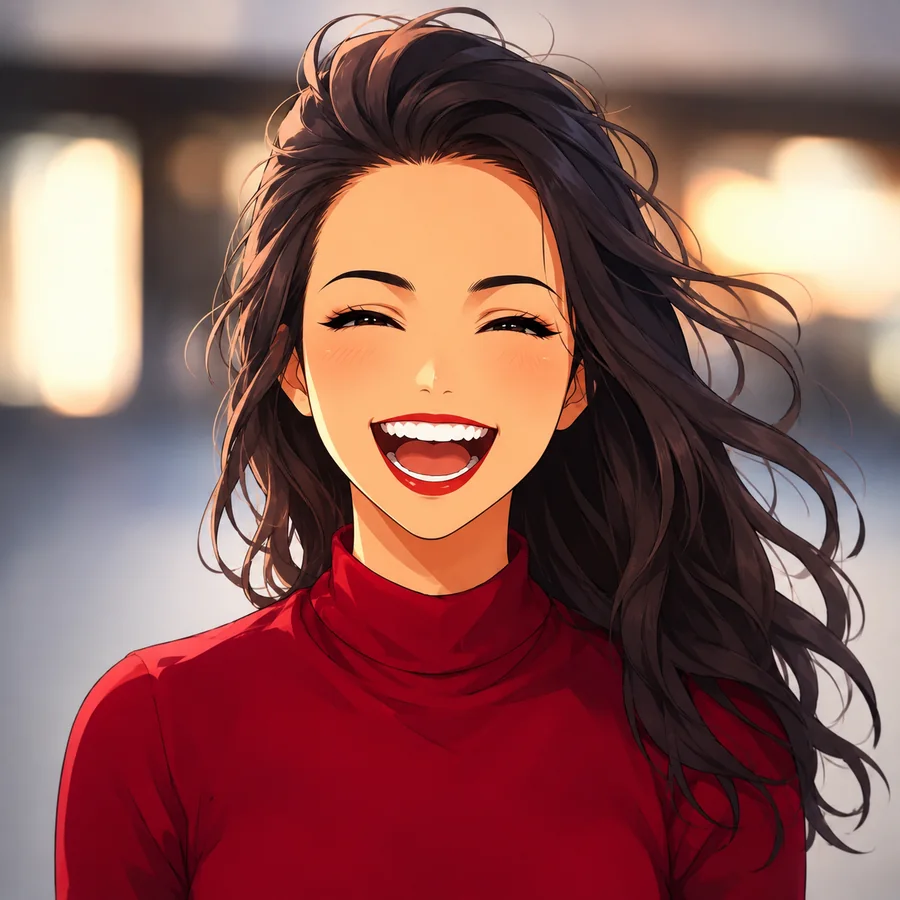
Use a short direction when the image needs help
The style preset supplies the main visual direction. If you need to guide the result, keep the instruction concrete and limited to the avatar job:
Anime portrait avatar, head and shoulders, centered face, clear eyes, simple dark-blue background, keep the glasses and short wavy hair recognizable.
This kind of note tells the generator what to preserve and how to frame the result. Avoid stacking contradictory phrases such as “realistic 3D anime watercolor comic sketch.” Pick one primary direction, then change one variable in the next attempt. Otherwise, you will not know whether the new result improved because of the crop, style, or wording.
Do not ask for a logo, server name, tiny quote, or detailed text inside the avatar. Text that looks readable in a large preview may become a blur at Discord size. Add those elements in your profile or server context instead.
Step 3: Review the Avatar at the Size People Will Actually See
Before uploading, zoom out until the image is close to the size of an avatar beside a chat message. You are checking communication, not pixel-level detail. Ask:
- Can you identify the face in one glance?
- Are the eyes and mouth still distinct?
- Does the hair merge into the background?
- Is the strongest color or contrast in the center rather than the corners?
- Does the image still read when the circular crop removes the square corners?
If the face disappears, make the next attempt simpler. Use a closer source crop, a plainer background, or a style with clearer outlines. If the result stops looking like you, change the reference photo before writing a longer prompt. A well-lit portrait with visible signature details usually gives the model more useful information than a heavily edited selfie.
If the first version is close but not quite right, keep the original download and make one targeted revision. For example, ask to keep the hairstyle and glasses, or to use a solid background. Comparing two controlled variations is more informative than generating ten unrelated styles.
Step 4: Upload the Image to Your Discord Profile
Once you have a version that reads well at small size, upload it through Discord:
- On desktop or in a browser, open User Settings and select Profiles.
- Select your current avatar or Change Avatar, then choose the downloaded image.
- Adjust the crop so the eyes and face remain inside the circle.
- Select Apply, then Save Changes.
Discord documents this path in its Custom Profiles help article. The same article notes that animated GIF avatars are a Nitro feature; a normal static anime avatar does not need animation.
If you want a different avatar in a particular community, Nitro users can use a per-server profile. On desktop, right-click your avatar in a channel and select Edit Per-server Profile, then upload and save the server-specific image. Discord's per-server profile documentation explains the current controls, supported upload types, and the separate server avatar setting.
Anime Avatar Ideas That Work Well on Discord
The best concept depends on the identity you want to communicate. Keep the idea readable in a head-and-shoulders composition.
Friendly community avatar
Use a warm expression, a simple pastel or solid background, and clean anime linework. This works well for social servers, study groups, and communities where approachability matters more than drama.
Gaming or roleplay avatar
Use one prop or color cue that hints at the character’s role: a headset, a cloak collar, a glowing accent, or a distinctive eye color. Keep the prop secondary to the face. A full weapon, elaborate armor, or wide action pose often becomes noise in a small circle.
Matching avatars for friends
Use the same crop, style, and background family for each person, then give each avatar one different color or expression. Consistent framing makes the pair recognizable without requiring identical images.
Creator or community identity
Choose one repeatable palette and silhouette that you can use on Discord, a channel page, and other profiles. A consistent avatar is more memorable than changing to a completely unrelated style every week. The AI Cartoon Generator homepage can help you explore additional cartoon directions when the project grows beyond one profile picture.
Common Mistakes to Avoid
Designing for the full-size preview
Fine eyelashes, tiny accessories, and intricate scenery may vanish after reduction. Test the image small before you decide it works.
Putting the face too low or too far to one side
The circular crop is unforgiving. Leave breathing room around the head and check the crop in Discord’s own preview before saving.
Using a dark subject on a dark background
Discord’s dark interface can reduce separation even further. A simple lighter rim, brighter hair highlight, or higher-contrast background can help the silhouette read.
Copying a recognizable character or another user’s avatar
Fan art and transformations can raise permission, copyright, or impersonation questions. Use an original concept, your own likeness, or an image you are authorized to use. Keep the final profile appropriate for the server and follow its specific rules.
Treating one generation as final
AI can alter small details between attempts. Save the version you like, compare targeted revisions, and keep a source photo that shows the features you want preserved.
FAQ
How do I create an anime avatar for Discord from my own photo?
Upload a clear portrait to the cartoon profile picture maker, choose Anime, generate a square result, review it at small size, and download the version whose face remains recognizable. Then upload it through Discord’s User Settings → Profiles → Change Avatar flow.
What is the best size for a Discord anime avatar?
Start with a square image and enough resolution for Discord’s crop and preview. More important than chasing one number is keeping the face centered, leaving space around the head, and checking the result in a circular crop. The generator creates a square profile-ready image, so you can focus on composition rather than manually forcing a wide image into a square.
Can I make an anime Discord PFP without drawing?
Yes. A photo-to-image workflow lets you use a portrait as the visual reference, choose a style, and download a new avatar without drawing software. A clear source photo and a simple direction usually matter more than a complicated prompt.
Can I use a different avatar for each Discord server?
Nitro users can set per-server profiles and server-specific avatars. The feature is separate from your primary profile avatar; use Discord’s per-server profile controls to upload and save the image for that community.
Why does my anime avatar look good large but bad in Discord?
The face may be too small, the background may have too much detail, or the circular crop may remove the important features. Regenerate from a closer portrait, simplify the background, and test the result at thumbnail size before uploading again.
Can I use an AI avatar to impersonate someone?
You should not. Discord’s identity and authenticity rules prohibit deceptive fake profiles and impersonation. Use your own likeness, an authorized image, or an original character, and label parody or roleplay clearly when needed.
Final Checklist
Before you select Save Changes, confirm that:
- the image is square and the face is centered;
- the eyes and expression remain visible when viewed small;
- the circular crop does not cut off the hair or chin unexpectedly;
- the source image and likeness are yours to use;
- the avatar follows the server’s rules;
- you kept a copy of the original download in case you want to reuse it elsewhere.
Creating an anime avatar for Discord is a short design loop: choose a strong reference, generate one clear style, inspect it at the size people see, and revise only what needs fixing. When you are ready to make your own, start with the cartoon profile picture maker and build the avatar around the circle from the first attempt.