
You can make an AI cartoon video in five practical steps: choose whether to start from text, an image, or a saved character; select one visual style; describe one clear action; choose the aspect ratio and resolution; then generate and review the finished 8-second clip. The key is to direct one readable moment instead of trying to fit a whole story into one prompt.
This guide follows the real workflow in the AI cartoon video generator. It shows three ways to begin—prompt only, a reference image, and a saved Character Asset—and explains how to write motion prompts that are specific without overloading a short shot.
Choose the Right Starting Point
The best input depends on what already exists and what the video must preserve. Do not upload an image merely because the control is available. Each starting point gives the generator a different job.
| Starting point | Use it when | Main creative decision |
|---|---|---|
| Prompt only | You want to explore a new subject, setting, or story beat | Describe the subject as well as the motion |
| One reference image | The still image already has the composition or design you want | Describe what should move, not how to redraw the image |
| Saved Character Asset | A recurring original character should lead the shot | Keep the identity active and direct one simple action |
Use prompt-only generation for exploration. It gives the model room to invent the subject and scene, so it works well for testing an idea before you have finished artwork.
Use a reference image when the first frame already matters. A clear image can communicate the subject, outfit, palette, and setting more directly than repeating those details in text. If you still need to create that source, the companion guide on how to create AI cartoon images explains how to generate and review a strong still before animating it.
Use a saved character when the video belongs to a connected character workflow. The active character reference helps the generator begin from an approved identity rather than reconstructing that identity from a new description.
Plan One Shot Before You Generate
An 8-second clip is long enough for a gesture, entrance, reaction, reveal, or simple camera move. It is not long enough for several scenes, a complete conversation, and multiple changes of location.
Write the shot as four decisions:
[subject] + [one visible action] + [one camera cue] + [setting or atmosphere]For example:
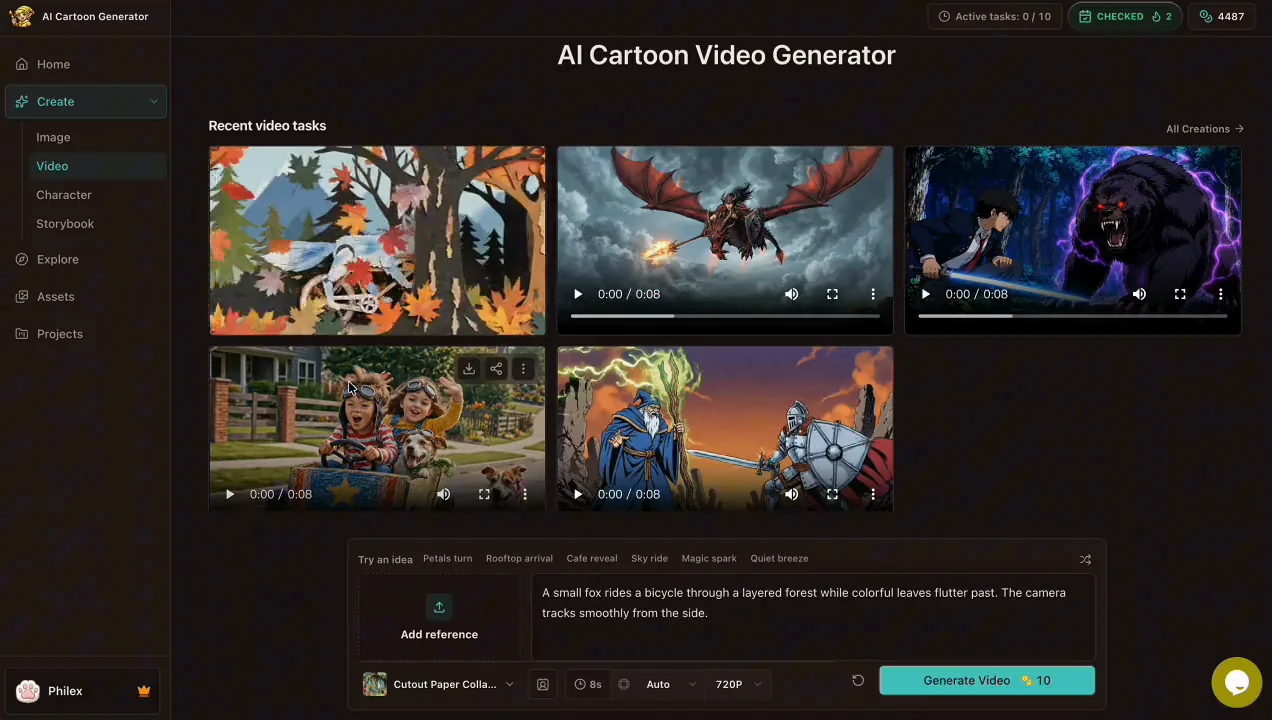
A small fox rides a bicycle through a layered autumn forest while colorful
leaves flutter past. The camera tracks smoothly from the side.
The subject is the fox. The action is riding. The camera tracks from the side. The autumn forest and moving leaves complete the atmosphere. Every part can appear in the same shot.
This structure also works for image-to-video. When the image already defines the character and setting, shorten the prompt:
The character slowly turns toward the viewer and gives a small wave. Soft
push-in camera, gentle breeze in the background.
Runway's official image-to-video prompting guide makes a similar distinction: the input image carries visual information, while the prompt should concentrate on the desired motion. The controls differ between products, but the planning principle is useful across image-to-video tools.
Before you open the generator, check the shot against three questions:
- Can the main action be understood without a second scene?
- Does the camera cue support the action instead of competing with it?
- If you use a reference image, have you stopped redescribing details the image already shows?
If any answer is no, simplify the shot before spending credits on a generation.
How to Make an AI Cartoon Video Step by Step
1. Open the cartoon video generator
Open the cartoon video creator. The composer includes reference images, a motion prompt, visual style, aspect ratio, resolution, and the Generate Video action.
You can start with no image, upload your own image, choose a completed image from My Creations, or select a saved character. Only use source material you created, own, or have permission to upload.
2. Choose one cartoon style
Open the style selector and choose one visual direction. The current studio includes cartoon and anime collections with options such as 3D Toon, Pixar 3D, Classic 2D Cartoon, Disney, Marvel, Minecraft, Claymation Stop Motion, Cutout Paper Collage, Retro Lo-fi Cartoon, Surreal Rubber Hose, and Lego.

Let the selected preset define the visual style. Use the prompt for subject, action, camera, and atmosphere. Combining several style names in the motion prompt can create competing instructions and makes a weak result harder to diagnose.
If you are animating a finished illustration or character, choose a style compatible with the source. A major change from a flat drawing to dimensional 3D is a redesign request as well as a motion request. For a first pass, preserve the broad visual language and test the movement.
3. Add a prompt, reference, or character
For a text-only shot, name the subject because no image defines it. Then add one action and one camera cue.
For image-to-video, add a clear source image and describe motion. The generator accepts up to three combined character and image reference slots. One readable image is enough for many shots; two or three related references are useful when an outfit, prop, or recurring design detail needs more visual context.
Avoid unrelated references. Three different characters, styles, or environments do not automatically produce a better result. Every image should help explain the same shot.

4. Set the aspect ratio and resolution
Choose the frame for the video's destination. Use 16:9 for a widescreen page, presentation, or horizontal video. Use 9:16 for a vertical short. Use Auto when a reference image should guide whether the output is landscape or portrait.
The available resolutions are 720P, 1080P, and 4K, with plan access and credit cost shown in the interface. Resolution affects output size, not whether the shot is well directed. Test a new idea at the lowest resolution that fits your review needs, then use a higher-resolution option when the motion and composition are already worth keeping.
Do not rely on cropping to repair the wrong frame. Choose the intended aspect ratio before generation, and make sure the subject has room to complete the action inside it.
5. Generate, review, and download
Select Generate Video. A task card appears while the video is processing, so you can see that the job is active without keeping the composer unchanged.
When the clip is ready, review it in this order:
- Identity: Does the main subject still look recognizable?
- Action: Is the requested motion visible and complete enough to read?
- Framing: Does the subject remain inside the chosen frame?
- Camera: Is the camera move smooth and useful, or does it distract?
- Artifacts: Do faces, hands, props, or background details distort during motion?
- Sound: Does the generated background sound fit the moment?
Download a result only after watching the whole clip. A strong first frame can hide a weak transition later in the video.
Three Practical Cartoon Video Workflows
Create a new scene from text
Prompt-only generation is useful when speed of exploration matters more than preserving an existing design. Start with a simple subject and a single action:
A cheerful robot gardener lifts a glowing seedling and looks up in surprise.
Slow camera orbit, quiet glasshouse ambience.
Keep the first test small. If the idea works, you can refine the subject or create a still reference for tighter visual control. Do not start by scripting several shots inside one prompt.
Animate a photo or finished illustration
Choose one source image with a clear subject, visible face or focal point, and enough space for motion. Avoid tiny subjects, heavy text overlays, or crowded collages.
The motion prompt should preserve the image's job as the visual source:
The child and dog lean forward as the cart rolls down the path. Their scarves
flutter in the breeze. Gentle forward tracking shot.
Do not ask the same clip to replace the background, change the outfit, introduce a second character, and perform a large camera orbit. If the still needs a major visual edit, fix the image first and animate the approved version.
Create a video with a saved character
A Character Asset is useful when the subject should return across images, videos, and stories. Select the character in the reference control, then describe the shot without rewriting the entire identity.

For example, the tutorial selects Pip the Forest Red Panda and uses a focused direction:
[Pip the Forest Red Panda] walks along the neon street.The character token identifies the active saved asset. The rest of the prompt directs the new moment. If you do not yet have a reusable subject, follow the guide to create a cartoon character with AI, save the strongest design, and test one controlled variation before moving into video.
Character references improve continuity, but generated video is not a frame-by-frame identity guarantee. Compare the finished clip with the approved character image and reject results that lose important facial features, colors, clothing, or accessories.
Common Problems and Focused Fixes
The clip feels random
The prompt probably contains a theme rather than an action. Replace “an exciting magical adventure” with a visible event such as “the wizard raises the lantern as blue moths circle it.” Add one camera cue only if it helps the event read.
The character changes while moving
Reduce motion complexity, use a clearer reference, and keep the camera closer to the source framing. Large body turns, fast movement, and dramatic camera orbits reveal more views that the single source image may not define.
The video tries to do too much
Split the idea into separate clips. “Walks into the cafe, orders a drink, sits down, and opens a map” is four actions. Start with the entrance or the map reveal, then create another shot if needed.
The camera fights the subject
Remove the camera cue and test the action alone, or use a restrained push-in, pan, or tracking movement. Do not combine orbit, zoom, handheld shake, and a fast subject action in one short clip.
The output framing is wrong
Return to the composer and select the aspect ratio that matches the destination. Do not stretch or heavily crop a finished video to force it into a layout it was not composed for.
Use References and AI Video Responsibly
Only upload images you have the right to use. “Found online” does not mean unrestricted. Creative Commons explains the permissions and conditions across its license types; check the specific license and attribution requirements attached to any openly licensed source.
Avoid asking the generator to copy a protected character or a real person's likeness without appropriate permission. Build original characters with their own names, identity anchors, clothing, palette, and personality.
Commercial use and copyright protection are separate questions. Tool access or a download button does not settle ownership, publicity rights, trademarks, or copyright in every jurisdiction. The U.S. Copyright Office's Copyright and Artificial Intelligence initiative collects its current reports and guidance on AI-generated material. For important commercial work, document your human creative choices and seek advice relevant to your location and use case.
Frequently Asked Questions
Can AI turn a cartoon image into a video?
Yes. Add a cartoon or anime image as a reference, then describe the subject motion and an optional camera cue. Use a clear image with one main subject and enough space for the requested movement.
What should I write in an AI cartoon video prompt?
Write the subject, one visible action, one optional camera move, and the setting or atmosphere. If you provide an image, focus more on motion because the image already defines much of the appearance.
Should I use text-to-video or image-to-video?
Use text-to-video to explore a scene from scratch. Use image-to-video when a finished composition, character, outfit, or visual direction should guide the result. Use a saved character when the shot belongs to a recurring original-character workflow.
How long is a generated cartoon video?
The current AI Cartoon Generator video workflow produces an 8-second clip. Plan one readable action or story beat for that duration.
Do AI cartoon videos include sound?
Yes. Completed videos include generated background sound. Review the sound with the same care as the visual motion before downloading or publishing the clip.
How many reference images should I use?
Start with one clear image. Add a second or third related reference only when it supplies useful information about the same character, outfit, prop, or visual direction. Characters and other images share a maximum of three reference slots.
Do I need animation or drawing skills?
No. You do need to plan a shot and judge the result. The most useful skills are choosing a readable source image, describing one action, spotting identity drift, and simplifying a prompt when the motion becomes unstable.
Can I make a long cartoon from one prompt?
This workflow creates a short clip, not a multi-scene film. Plan a longer idea as separate shots with one action in each. Keep an approved character or image reference available when visual continuity matters across those shots.
Create One Readable Cartoon Moment
The dependable way to make an AI cartoon video is to keep the first shot small. Choose the right starting point, select one style, direct one visible action, add a restrained camera cue, and review the entire clip before increasing resolution or adding complexity.
Open the AI cartoon video generator and create one 8-second moment from a prompt, a finished image, or a saved character. If the first result misses the idea, change the single instruction that caused the largest problem instead of rewriting everything at once.