
Seedream 5.5 for cartoon editing marks a practical shift from full-canvas redrawing toward localized, identity-preserving reference edits. Instead of rerolling an entire illustration when a single garment color or handheld prop needs updating, creators can submit an existing character frame and prompt targeted adjustments. Toonderly provides direct access through our Seedream 5.5 generator, routing image-to-image and text-to-image pipelines via KIE AI. Using this model requires an active paid subscription plan rather than pay-as-you-go credit packs.
The real advantage of Seedream 5.5 in cartoon production is its balance between preserving style geometries and following plain-language instructions. However, achieving consistent results requires structured preservation prompts, awareness of latent drift, and clear stopping criteria. This guide covers verified workflows, real prompt formulas, common failure modes, and an objective comparison against other diffusion engines.
Direct Answer: How Effective Is Seedream 5.5 for Cartoon Editing?
Seedream 5.5 excels at single-turn, targeted reference modifications—such as recoloring garments, swapping handheld props, or adding short, legible English signage—while preserving facial anatomy, line weight, and shading. Its strongest performance is in stylized 3D, storybook, and anime aesthetics where visual landmarks are clearly defined.
Its main operational constraints are cumulative micro-drift across successive edits, subtle background entropy during lighting changes, and lack of native support for transparent alpha channels or layer exports on the standard interface. In Toonderly, outputs are opaque stills at 1K or 2K resolution. For vector-precise line work or long graphic copy, manual design software remains essential alongside diffusion passes.
What Changed in Seedream 5.5: Claims vs. Reality
ByteDance released Seedream 5.5 on November 9, 2026, positioning it as an image foundation capable of visual coherence across up to 100 consecutive edits. The documentation highlights three advances:
- Semantic attention masking: Isolates target tokens (like garments or props) without bleeding edits into facial contours or hair.
- Material rendering: Improved handling of complex textures, including glass refraction, brushed copper, linen, and glazed ceramics.
- Short Latin text composition: Renders Latin lettering onto signs, badges, and book covers without character melting.
While developer benchmarks showcase theoretical limits, daily cartoon production reveals practical boundaries: competing prompt instructions can still introduce subtle anatomy shifts.
Furthermore, provider API features differ from consumer SaaS implementations. KIE's developer reference lists transparent output, 1.5K ratios, 4K upscaling, and layer decomposition. In Toonderly, we support 1K and 2K opaque renders in Text-to-Image and Image-to-Image modes. Transparent alpha channels, layer separation, and 4K modes are omitted to preserve predictable generation speeds and stable edge memory limits.
Comparison: Seedream 5.5 vs. Competing Models
Choosing the right diffusion engine depends on whether your project prioritizes character consistency, surface detail, or speed. The table below contrasts Seedream 5.5 with other common models:
| Evaluation Dimension | Seedream 5.5 | Seedream 5.0 | Nano Banana Pro | GPT Image 1.5 | Midjourney v6 (Vary Region) |
|---|---|---|---|---|---|
| Character Feature Lock | High (preserves face, glasses & pose) | Moderate (frequent facial drift) | High (optimized for anime/chibi) | High (strong semantic adherence) | Moderate to High (requires inpainting brush) |
| Garment & Prop Swapping | Excellent via natural language | Fair (often shifts adjacent anatomy) | Good (needs strict negative prompts) | Excellent (interprets complex requests) | High (requires manual brush selection) |
| Latin Text Rendering | High (1-4 words on signs & posters) | Poor (scrambled character shapes) | Moderate (handles short words) | Very High (handles multi-word phrases) | Moderate (occasional misspelling) |
| Material Fidelity | Very High (ceramics, glass, metals) | Moderate (flat shaded surfaces) | High (vibrant anime cel-shading) | High (balanced realism) | Very High (rich artistic texturing) |
| Editing Drift (Rounds 1-3) | Low (subtle line weight changes) | High (noticable style distortion) | Moderate (color tone shifts) | Low (consistent identity markers) | Low within masked bounding box |
| Toonderly Integration | Dedicated model page (1K / 2K) | Superseded | Global generator option | Global generator option | Not available (external platform) |
| Access Gate | Paid Subscription Required | Deprecated | Standard Credits / Subscription | Standard Credits / Subscription | External subscription |
When modifying existing cartoon frames, the dedicated Seedream 5.5 interface saves time over brush-based tools: you upload the reference image and declare preservation anchors in plain text without manual masking.
The 4-Step Reference Editing Formula
To achieve dependable cartoon edits without losing your character's visual identity, follow this four-step prompt structure:
[Target Action] + [Target Element & New Attribute] + [Explicit Anchors to Keep] + [Style/Lighting Environment]Step 1: Quality Check on the Source Reference
Never edit on a flawed base image. Diffusion models treat existing flaws as deliberate style choices. Inspect the source at 100% zoom before editing:
- Check that hands, paws, and fingers have correct anatomy.
- Verify line art has continuous, unbroken contours.
- Confirm eye symmetry and facial markings match your character sheet.
Any flaw present in the reference will be amplified in subsequent editing rounds.
Step 2: Formulate the Preservation Prompt
The most common operational mistake is submitting an isolated command like "Make the apron coral." Without explicit anchors, the attention mechanism recalculates unmentioned regions. A reliable prompt explicitly separates the edit from elements that must stay frozen.
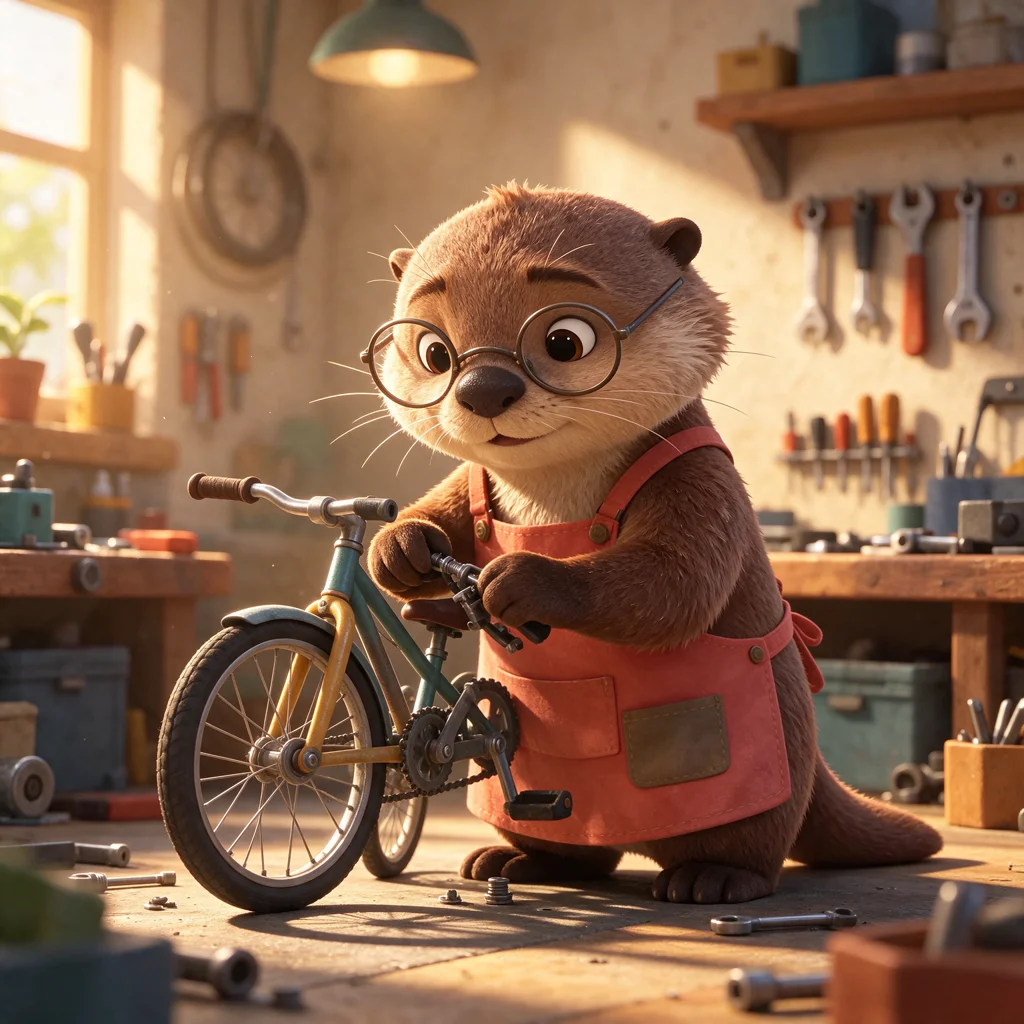
Consider our reference scene featuring an otter mechanic:
Base Generation Prompt:
"An otter bicycle mechanic wearing a teal apron and round glasses, repairing a small bicycle in a workshop with a cream wall and neatly arranged tools."
When executing the modification, state positive preservation anchors:
Targeted Edit Prompt:
"Change only the otter mechanic apron from teal to coral. Keep the same face, round glasses, pose, bicycle, tools and workshop."
Listing anchors like face, round glasses, pose, bicycle, and workshop keeps their attention weights engaged during denoising.
Step 3: Select Resolution and Render Mode
Inside the Seedream 5.5 model workspace, choose between 1K (1024×1024 for 1:1) and 2K (2048×2048) outputs:
- 1K Resolution: Ideal for fast validation (10 to 18 seconds), confirming whether the prompt parsed correctly.
- 2K Resolution: Use for approved deliverables destined for publication or print, where crisp line art is essential.
Step 4: Compare and Audit Artifacts
Once generated, perform a side-by-side inspection against the original:
- Seams and Boundaries: Check where modified elements touch unchanged anatomy (like apron straps crossing fur) for color smudging.
- Signature Features: Confirm glasses, ears, whiskers, and distinctive color patches remain identical.
- Background Stability: Verify background props did not reorganize or change shape.
Real-World Case Studies in Cartoon Editing
We ran five practical tests using real production assets to evaluate Seedream 5.5 across distinct editing scenarios.
Case 1: Color and Garment Modification
Our first test altered the mechanic's apron from teal to coral. The coral apron preserved the exact folds, stitching highlights, and physical position of the original garment, while the otter's fur pattern, whiskers, and round spectacles remained intact.
Close inspection showed that while the wrench in the mechanic's hand stayed stable, one small screwdriver on the background tool rack rotated slightly. This illustrates a core rule: secondary background elements furthest from the prompt's focal point experience higher latent entropy than primary foreground subjects.
Case 2: Prop and Accessory Replacement
Replacing a held item while preserving hand posture is a frequent failure point in image generation. We tested an anime astronomer holding a paper star map beside a telescope.
Source Prompt:
"A young adult astronomer with short brown hair and a coral jacket holding a star map beside a telescope on a rooftop."
We then ran an image-to-image edit to substitute the paper map with a globe:
Edit Prompt:
"Replace the paper star map with a small globe held in the same hands. Preserve the astronomer face, hair, coral jacket, telescope, rooftop and framing."
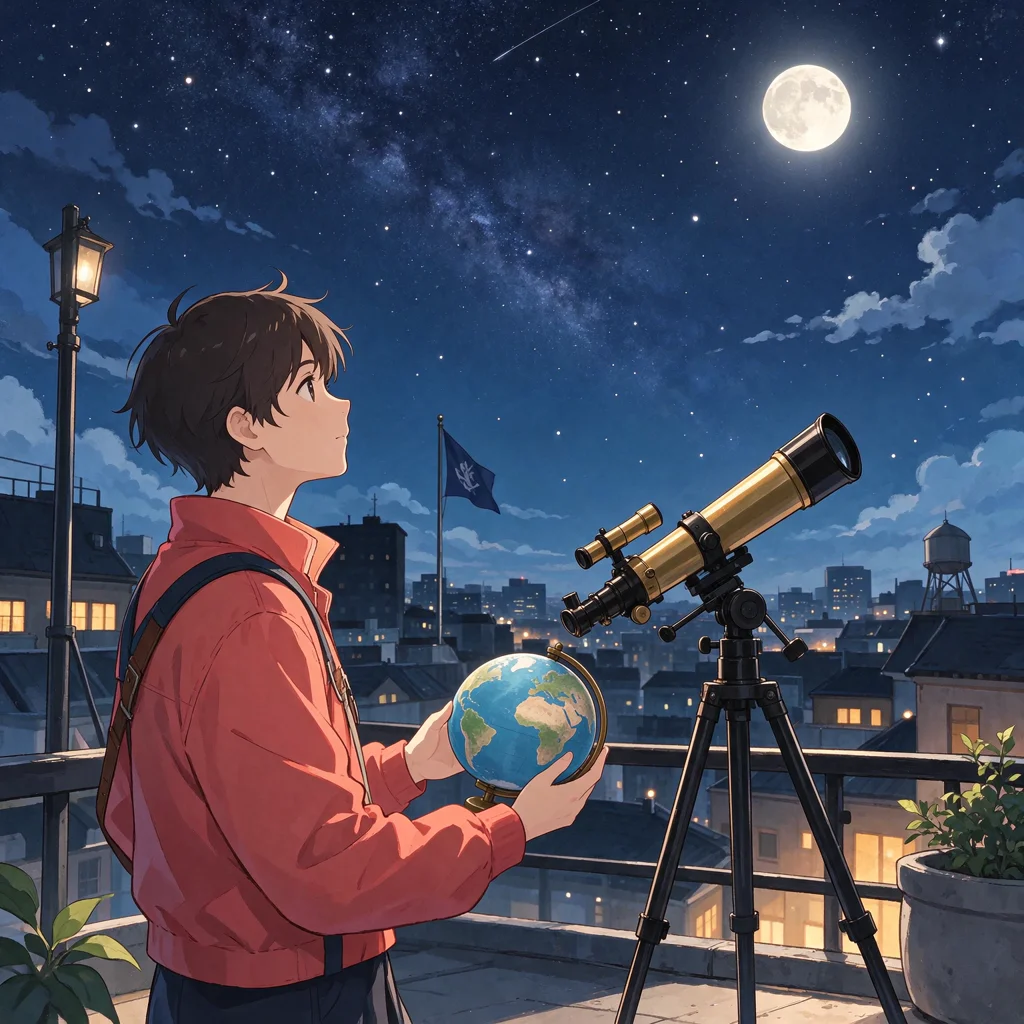
The model replaced the paper map with a globe while maintaining finger placement, jacket color, and skyline—confirming clean structural replacement without facial reset.
Case 3: Scene Expansion and Camera Reframing
Moving an established character into a new setting requires synthesizing new background geometry. We placed the otter mechanic outside its shop:
New Scene Prompt:
"Show the same otter mechanic standing beside the repaired bicycle outside the workshop. Preserve the round glasses, face markings and teal apron."
The model carried over signature identity markers—glasses, face proportions, and apron styling. However, the outdoor bicycle differed subtly in frame geometry from the indoor repair stand version. For recurring multi-scene projects, pair reference edits with our consistent character generator to store dedicated model sheets before generating sequential scenes.
Case 4: Precise Signage and Typography
Diffusion models often struggle with legible lettering. We tested Seedream 5.5 on a reading festival poster with specific uppercase text.
Typography Prompt:
"A neighborhood reading festival poster with a large sign that reads OPEN BOOK and a smaller line SATURDAY, a young adult librarian arranging books at an outdoor table."
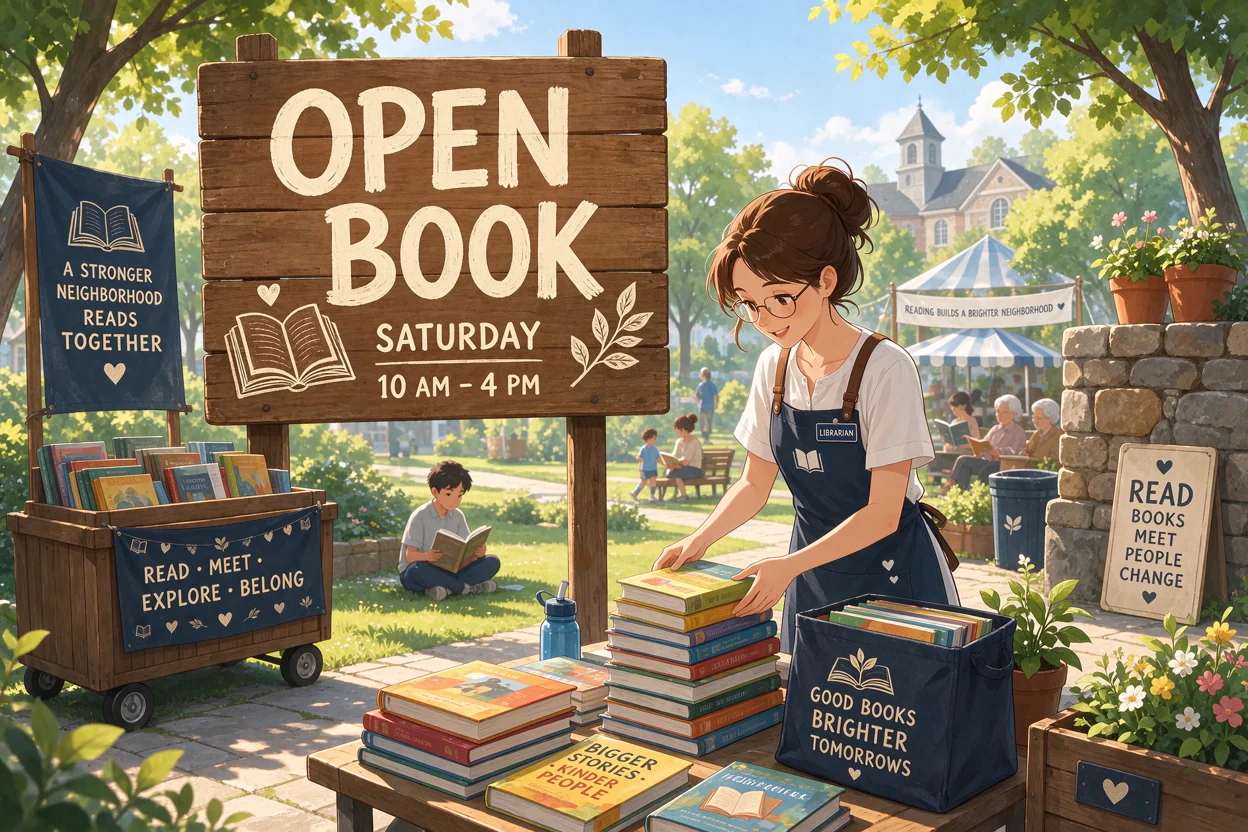
The render cleanly displayed OPEN BOOK on the primary wooden banner and SATURDAY on the lower placard. While short phrases of 1 to 4 words succeed consistently, sentences exceeding 8 words still produce merged glyphs. For multi-line dialogue or packaging copy, generate clean blank signs and add text in graphic design software.
Case 5: Complex Material and Lighting Rendering
Seedream 5.5 incorporates improved handling of diverse physical materials in stylized settings. We evaluated this using a porcelain robot serving tea:
Material Test Prompt:
"A small ceramic robot serving tea in a cottage kitchen, a glass teapot, wooden table, folded linen napkin and a copper kettle."
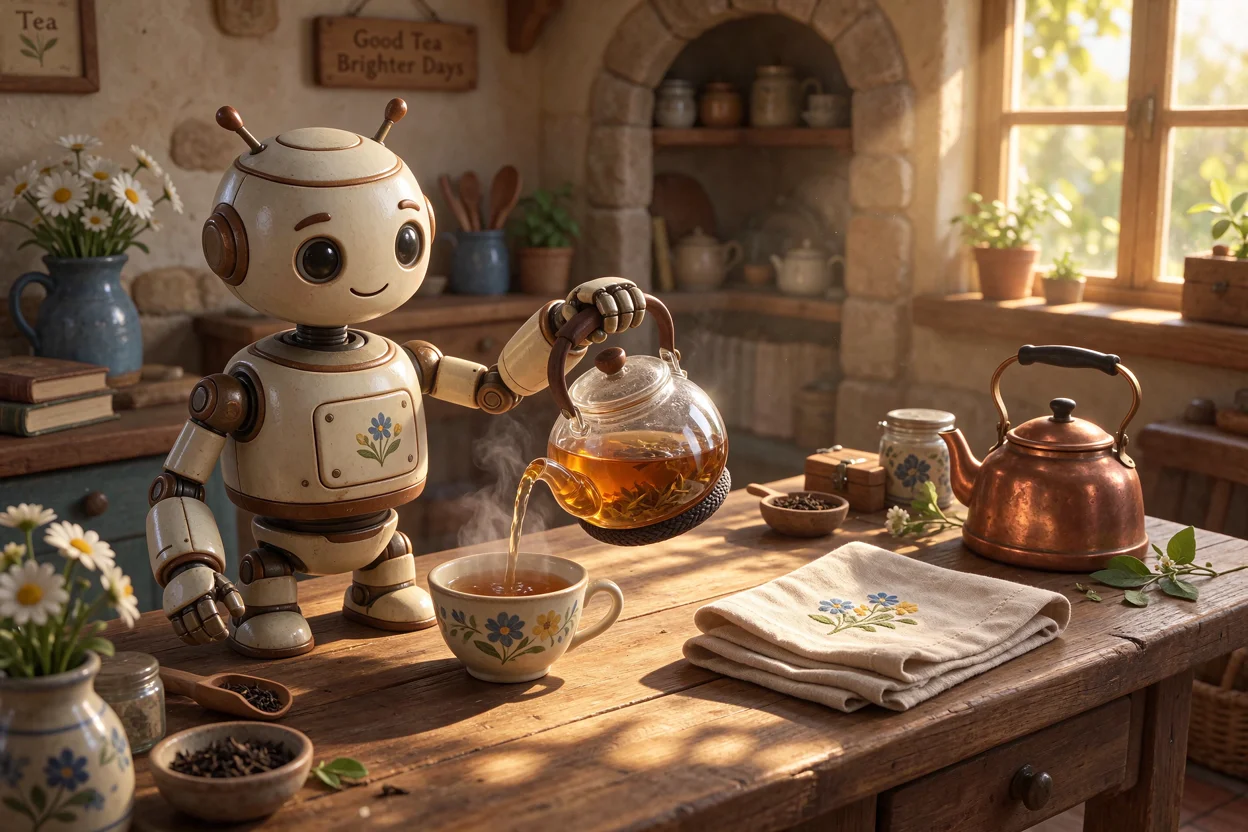
The output demonstrates high physical fidelity: glazed ceramic highlights reflect ambient light, the glass teapot displays believable refraction, and the copper kettle carries metallic sheen—all while maintaining storybook art direction.
5 Common Mistakes in AI Cartoon Editing
- Compounding multiple changes in one turn: Requesting a new shirt, different shoes, expression change, and lighting shift in a single prompt forces competing attention weights. Execute edits sequentially, locking in approved states before the next adjustment.
- Omitting spatial anchors: Prompts like "Add a hat" risk placing a cap on a table or altering hair. Anchor placement explicitly: "Add a small yellow beanie on the head between the ears, keeping existing hair and ear geometry."
- Pasting bloated negative prompt lists: Generic 150-word negative dumps flatten cartoon shading and fight intentional exaggeration. Use brief, specific negatives only when an unwanted element recurs.
- Expecting full-paragraph typography: Requesting slogans inside an image produces mangled characters. Restrict in-image text to short uppercase words enclosed in quotes, such as
CAFEorEXIT. - Prototyping directly at 2K: Generating at 2K for early concept tests burns time and quota. Validate composition at 1K first, then switch to 2K for final delivery.
Step-by-Step Workflow in Toonderly
Running a cartoon edit in Toonderly follows a clear path:
- Open the Model: Go to our Seedream 5.5 workspace where routing parameters are pre-configured.
- Confirm Subscription: Ensure you are signed in with Google and have an active subscription unlocking advanced generation models.
- Select Mode: Use Text to Image for initial character creation, or Image to Image for reference editing with a PNG, JPG, or WebP source (up to 10MB).
- Choose Style and Resolution: Select a preset style like 3D Cartoon or Anime (or Auto for pure text prompting), set your aspect ratio, and start at 1K.
- Submit Structured Prompt: Enter instructions using the 4-step formula with explicit preservation anchors.
- Inspect and Iterate: Download the full-resolution asset or feed it back as the reference for subsequent refinements.
If your project calls for testing alternative model behaviors, our full cartoon photo generator lets you compare outputs across Nano Banana, GPT Image, and custom fine-tunes under identical prompts.
Frequently Asked Questions (FAQ)
Can I generate transparent PNG cartoon stickers with Seedream 5.5?
No. In Toonderly's implementation, Seedream 5.5 generates opaque background stills at 1K or 2K. While the provider API has an experimental transparency endpoint, our platform defaults to solid backgrounds for edge performance. For transparent character assets with die-cut borders, use our dedicated AI sticker maker.
Can I animate an edited Seedream 5.5 character into a video?
Yes, through a two-stage workflow. Seedream 5.5 produces still images. Once you finalize an approved still, import it into our AI cartoon video generator, which applies dedicated motion diffusion engines to create character animation with camera motion.
Does Seedream 5.5 maintain quality across 100 consecutive edits?
The advertised "100-round stable editing" is a theoretical laboratory benchmark. In creative production, subtle pixel drift accumulates after 4 to 6 successive passes: linework fluctuates slightly and secondary background details reorganize. We recommend limiting serial edits to 3 to 5 rounds while keeping your master reference archived.
How does Seedream 5.5 handle non-English text on signs?
The model is optimized for Latin characters (English, Spanish, French, German) and reliably renders short uppercase words. Chinese characters, Japanese Kana/Kanji, or Arabic scripts frequently suffer from missing strokes. For non-Latin typography, generate a clean sign and overlay vector text in your design suite.
Why did my character's face change during a garment edit?
This happens when prompts lack positive anchor statements. If you only write "Change the coat to green," the model re-evaluates the whole canvas. Always append explicit anchors: "Change the coat to green. Keep the same face, eye color, glasses, expression and hair."
Is 2K resolution always better than 1K for cartoons?
Not always. 2K provides higher density for print, but 1K renders faster and often produces tighter line art for stylized 2D cartoons. Extended 2K sampling passes can occasionally introduce unwanted micro-texture onto smooth surfaces.
Can I use images edited with Seedream 5.5 commercially?
Commercial rights depend on reference ownership and compliance with our Terms of Service. Our platform places no commercial restrictions on outputs generated under active paid plans, but using third-party copyrighted characters remains subject to standard copyright laws. Ensure you hold rights to uploaded references.
Are my uploaded reference images kept private?
When you upload an image for editing, it is processed through encrypted KIE API channels solely for that generation request. We do not use private user uploads to train public models. For data retention details, review our Privacy Policy.
What should I do if a specific prop refuses to change?
When a model exhibits "reference latching," make your prompt more decisive. Instead of "modify the cup," use assertive wording: "Completely remove the ceramic cup and replace it with a tall glass bottle. No ceramic cup." Alternatively, crop closer or test in our general cartoon generator using Nano Banana Pro.
How are generation fees handled for Seedream 5.5?
Seedream 5.5 operates under Toonderly's active subscription tier, providing dedicated monthly compute allocations for advanced models. Pay-as-you-go credit packs cannot be used for Seedream 5.5, ensuring dependable queue throughput for subscribers.